
Add your guests
Add guests one by one or import a spreadsheet, and give guests plus-ones.
- Where
- Event → People
- Do first
- Create your event
Adding a guest doesn’t email them. Guests are added as Draft and hear nothing until you send invites. Add everyone first, check the list, then send.
Add one guest
- On People, select New guest.
- Enter First name, Last name and Email. Title and Company are optional.
- Leave Send their invite email now unticked unless you’re ready.
- Select Add guest.
Check the email address carefully. It can’t be changed after the guest is added, because their invite and login are tied to it.
Import a spreadsheet
- On People, open the ⋮ menu and choose Import guests.
- Select Download template if you’re starting from scratch. It has the columns Attend recognises.
- Upload your file: CSV, XLS or XLSX, up to 2 MB and 2,000 rows. Only the first sheet is read, and the first row must be the column headings.
- Check the Field mapping. Attend matches common headings automatically (for example “E-mail” or “Surname”). Select Auto-map to redo it, or pick columns yourself. Email is required, plus a name (a full name or a first name).
- Choose a Default status. Use Invite later to add guests without emailing anyone yet.
- Review the preview. The Needs attention count shows rows with a missing name, an invalid email, or an email that appears twice in the file. Each row’s problem is shown next to it.
- Select Import guests.
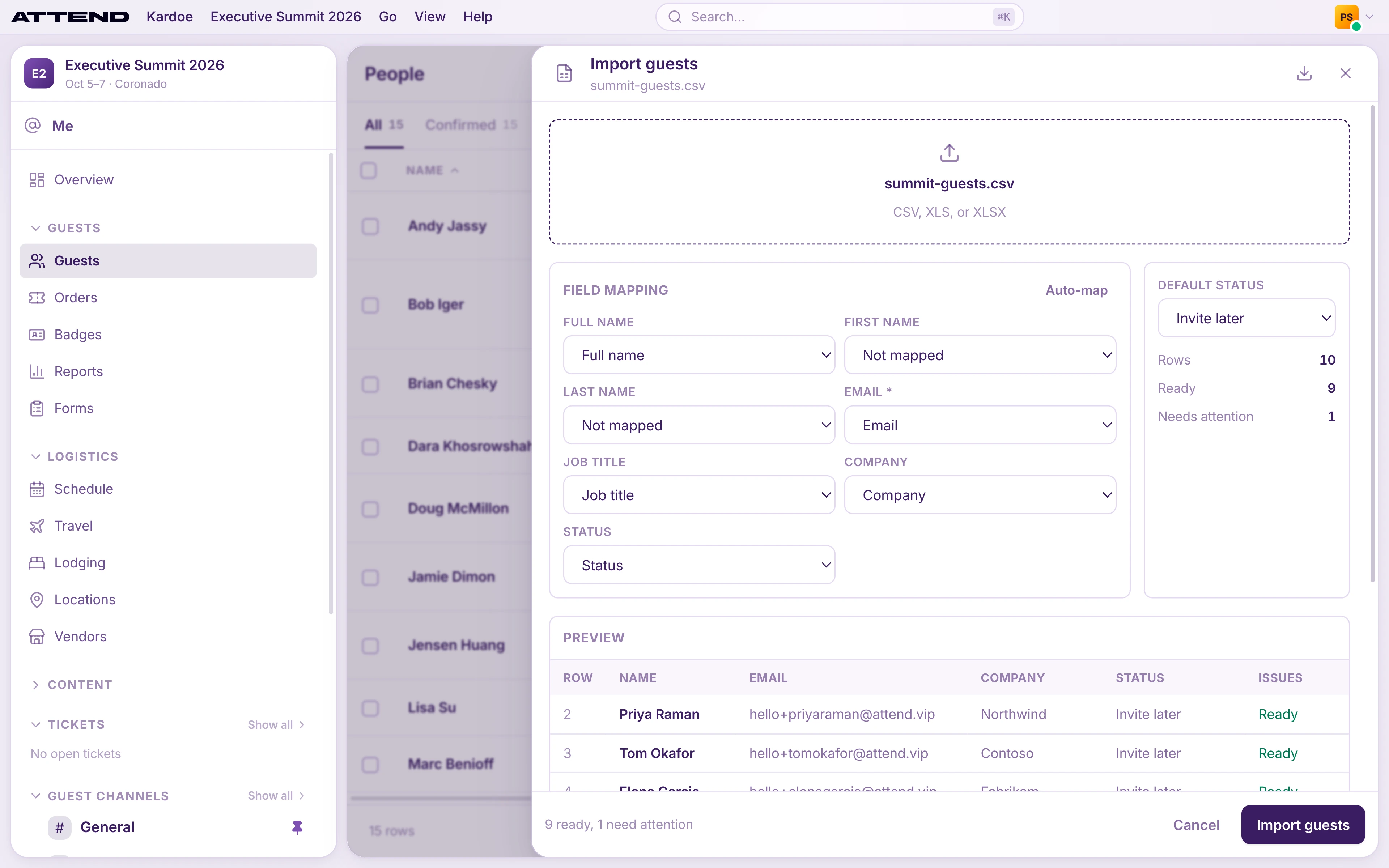
Re-importing is safe. The preview checks every email against your guest list, so guests who are already there are marked Already on list. You can skip them, or update their name, title and company. Their RSVP status is never changed.
Columns Attend recognises
| Column | Also matches |
|---|---|
| Email (required) | Email address, E-mail, Mail |
| Full name | Name, Guest name, Attendee name |
| First name / Last name | Given name / Surname, Family name |
| Job title | Title, Role, Position |
| Company | Organization, Employer |
| Status | RSVP, Invite status |
A Status column overrides the default for that row. “Confirmed” adds them as already going, “Send invite” emails them during import, and “Later” adds them as a draft.
Details from past events
The import can also carry Diet, Allergies, Dietary notes, Shirt size and Accessibility columns. These are saved to your contact records and pre-fill each guest’s forms. Guests confirm them, and anything they enter themselves wins.
Plus-ones
To let a guest bring someone, open their record and go to the Plus-ones tab. Enter how many guests they can bring and select Grant. If the guest has the app, they get a push notification and can invite their plus-one from the app’s home screen. No email is sent.
You can also add a plus-one for them: select Add +1, fill in their details, then Add + invite. This emails the plus-one their invite straight away. A plus-one gets their own invite, login and schedule.