
Brand your event
Set your colour and header image so the app and invites look like your event.
- Where
- Event → Settings → Branding
- Do first
- Create your event
Branding is the difference between “an app we were told to download” and “our event’s app”. It takes five minutes.
Before you start
Have these ready:
- Your brand colour as a hex code, e.g.
#0B5FFF. - A header image: a photo or artwork for the top of the guest app’s home screen. It’s cropped to a square, so keep the important part in the middle. 1080 × 1080 or larger works best.
Colour and header
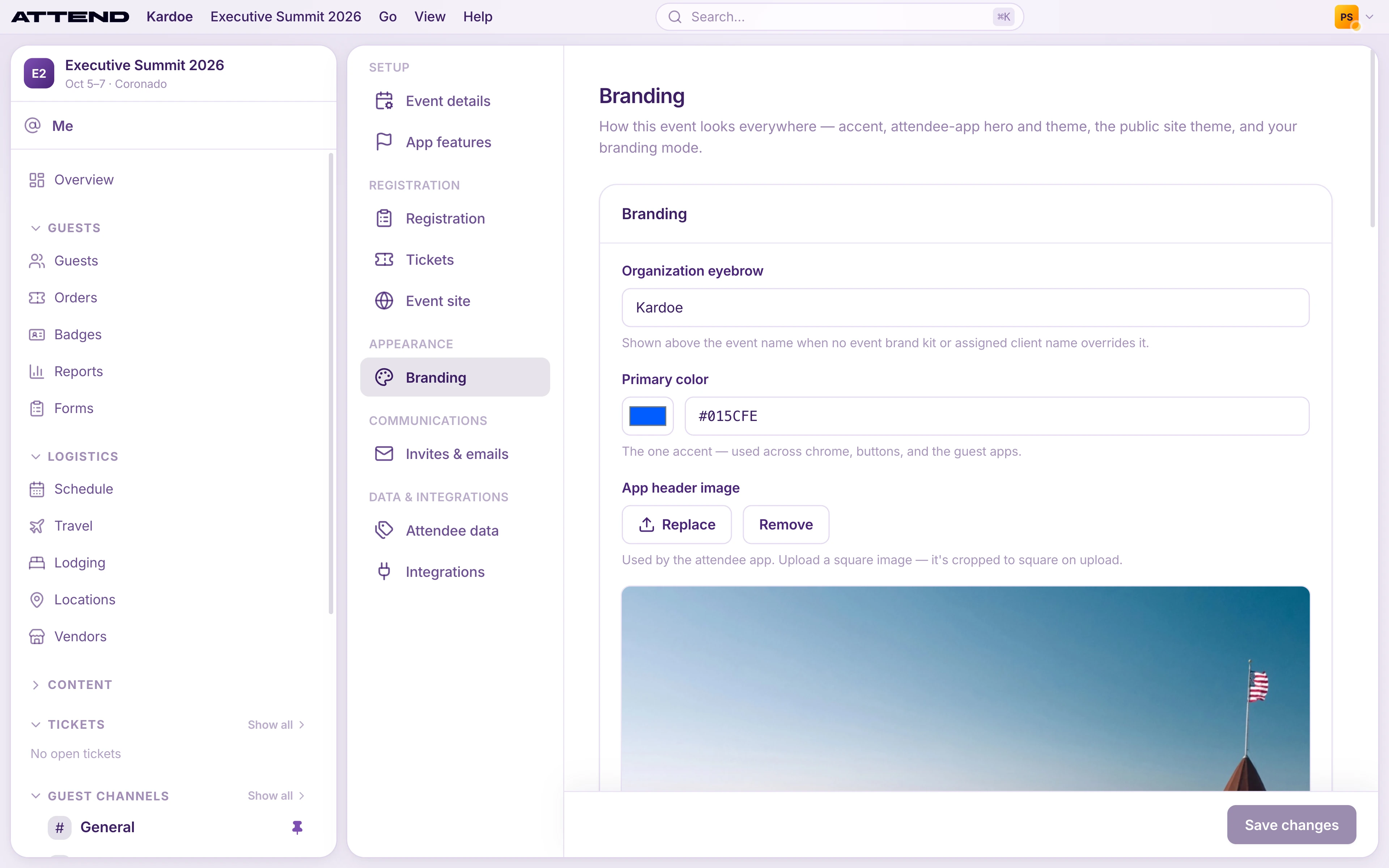
- Primary color: pick your brand colour. It’s used for buttons and highlights in the guest app and the invite email.
- App header image: select Upload, choose your image, drag to frame it, and select Crop & upload.
- Header design: choose how the image and event details sit together:
- Default: full photo, details below it.
- Compact: a shorter banner, details below.
- Card: full photo with the details on a glass card at the bottom.
- Overlay: full photo with the details top-left over it. Use artwork with a calm top edge so the text stays readable.
- Compact overlay: shorter banner, details top-left over the photo.
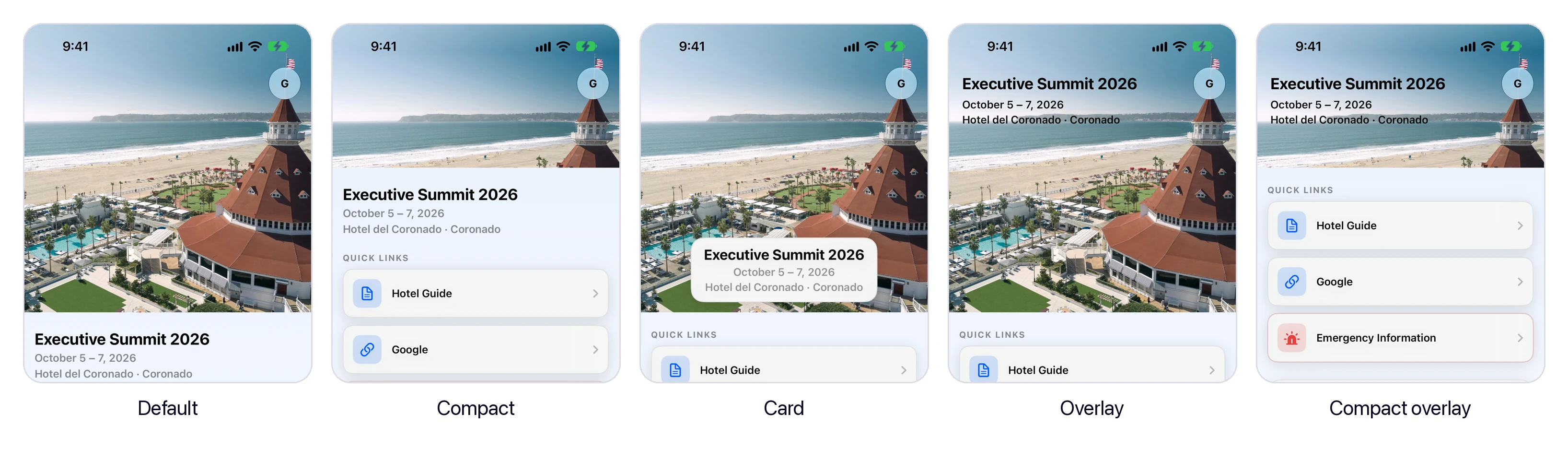
Attendee app hero
Choose what appears on the guest’s home screen: Show event name, Show dates, and Show location.
A small “Powered by Attend” credit sits at the bottom of the guest’s home screen. Removing it is part of white-label, which we set up for you. White-label events also get a Show Powered by Attend switch here.
Theme override (optional)
Attend picks background and text colours that work with your primary colour in light and dark mode. To control them yourself, open Theme override, choose Light or Dark, and turn on the custom palette.
Select Save changes at the bottom of the page.
Public event site theme
If you use a public event page at events.attend.vip, its colours and fonts are set in Public site theme, which has its own Save site theme button. Changes go live within moments.