
Add what guests will arrive to
Fill in the schedule, travel, documents, forms and channels before guests open the app.
- Where
- Event → Schedule, Travel, Documents, Forms, Channels, Locations, Links
- Do first
- Choose what guests see
Guests open the app minutes after they get your invite. Make sure there’s something useful waiting. You don’t need everything finished: add what you know now and keep adding. Guests see updates live.
Only set up the features you switched on.
Draft or published? Schedule items, documents and forms can be saved as Draft while you work. Guests only see what’s Published.
Schedule
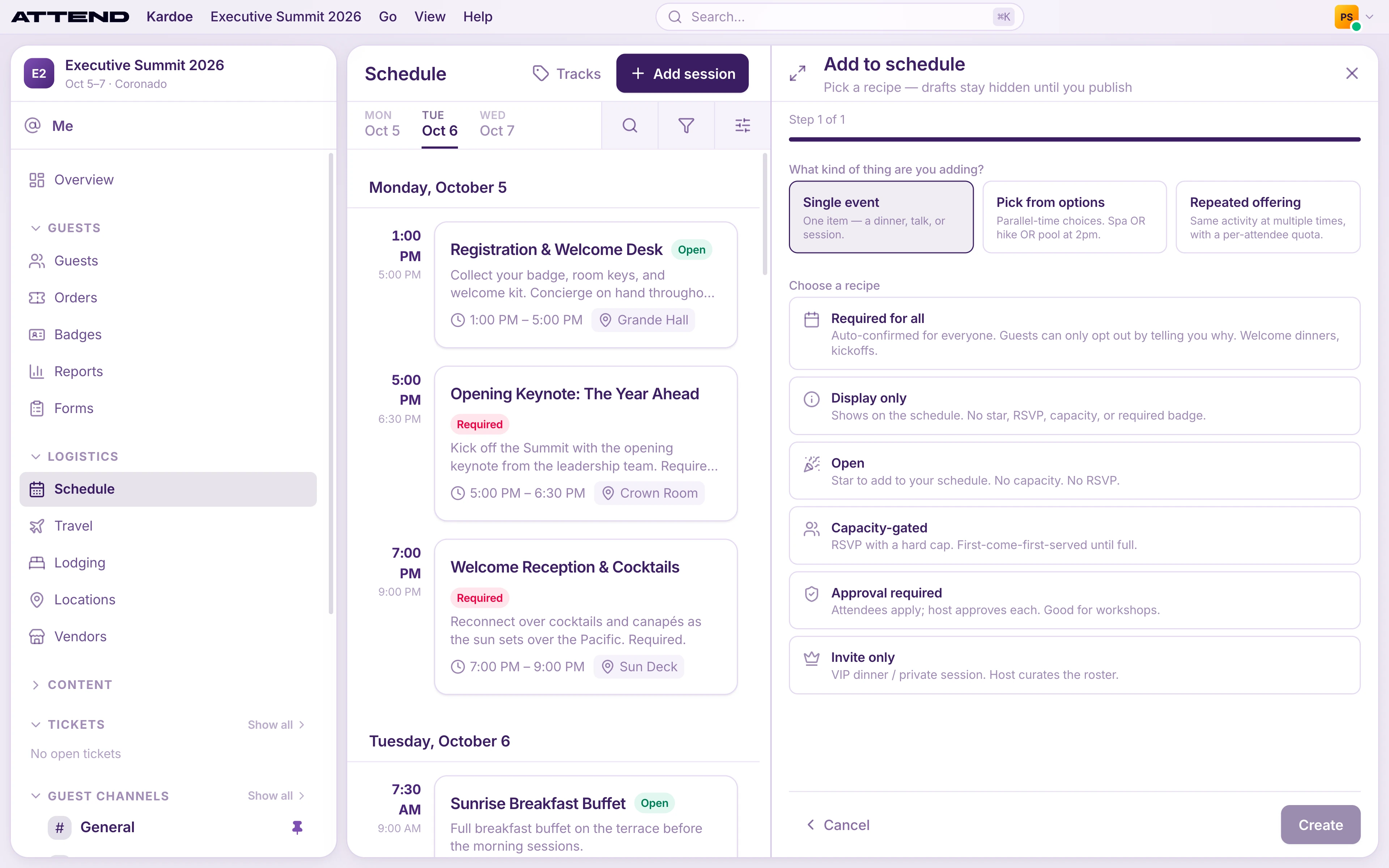
On Schedule, select Add session and pick a recipe:
- Single event: one session at one time, such as a welcome dinner. Choose whether it’s Required for all (it appears on everyone’s agenda automatically), Display only, Open to sign up, Capacity-gated, Approval required or Invite only.
- Pick from options: a group of choices.
- Pick exactly one or Pick one or skip: options at the same time, like three afternoon excursions. Choosing one releases the others.
- Pick any combination: options at different times that guests can mix.
- Placeholder (Coming soon): holds the slot until you add the options.
- Repeated offering: the same activity offered at several times, like spa slots. Guests book the number of times you allow.
Give it a name, times and a location, set a Capacity and waitlist if places are limited (choose a capacity-gated, approval or invite-only recipe for that), and choose Published or Draft.
Use Tracks to tag sessions (for example “Partners programme”) so guests can filter.
Travel
On Travel, select Add travel and choose a flight, ground transfer or rental. Add the details and the Travelers it applies to. Each guest sees only their own travel.
Lodging
On Lodging, select Add stay. Enter the Hotel, Check-in and Check-out, and optionally the room type, confirmation number and address, then choose the guests in the room. Select Save stay. Each guest sees their own stay in the app.
Documents
On Documents, select New document, give it a title and a kind (for example Travel info, Venue info, FAQ or Emergency information), and write it in the editor. Select Publish to make it available in the app. Use Pin to Home for the documents every guest should see first.
Forms
On Forms, select New form and start from a template or a blank form. Use forms to collect anything you need from guests: passport details, dietary needs, emergency contacts, shirt sizes.
- Audience: everyone, specific guests, or only guests in a session, group or ticket type. It can’t be changed after the form is created.
- Emphasis: mark a form Important to make it stand out in the app.
- Submission: Editable lets guests change their answers later. One-time locks them after submitting.
Channels
Under Guest channels, select New channel. Choose who’s in it under Membership, such as Everyone confirmed, a session’s attendees, or a flight group. Set Who can post to Organizers only for an announcements channel.
Channels without guests are internal and only your team can see them.
Locations and links
- Locations: add venues and rooms with Add location, then use them on schedule items so guests know where to go.
- Links: add useful links, such as a restaurant menu or a dress-code guide, with Add link.