Get into the console
Accept your invitation, sign in, and invite the rest of your team.
- Where
- aaa.attend.vip
The Attend console at aaa.attend.vip is where you set up and run your events. You can’t sign up on your own. Attend sets up your organization and emails the first person a Sign in to Attend link. Everyone that person invites gets an invitation email.
Accept an invitation from a teammate
- Open the invitation email and follow the link. The page says You’re invited to join with your organization’s name and your role.
- Confirm your email address and select Continue. We email you a 6-digit code.
- Enter the code. On the next screen, add your name if asked and select Accept & join.
- On the You’re in screen, select Set up a passkey (if your browser supports it) so that next time you can sign in with one tap, or Skip for now. If you’d rather use a password, choose Prefer a password? Set one up.

Wrong account? If you’re signed in as someone else, the page says Wrong account. Select Sign out & continue and sign in with the address the invitation was sent to.
Sign in later
Go to aaa.attend.vip, enter your email and select Send sign-in code. Enter the 6-digit code from your inbox. If you set a password, choose Sign in with password instead.
Forgot your password? Choose Use a sign-in code instead. To set a new password, go to aaa.attend.vip/set-password.
Invite your team
Everyone who helps run events needs their own login. Only Admins and Owners can invite people.
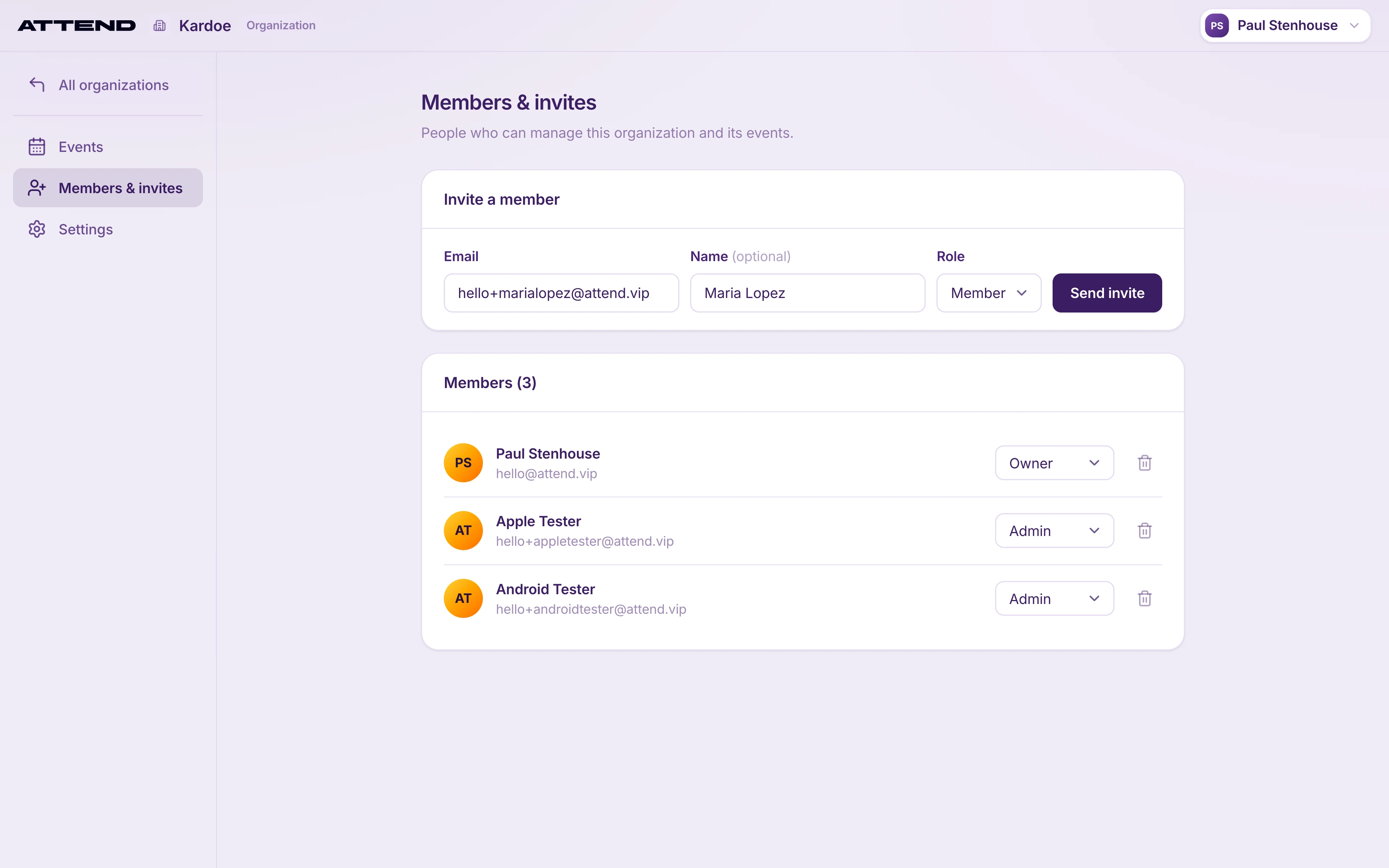
- In your organization, open Members & invites.
- Under Invite a member, enter their email and choose a role:
- Member can create, set up and run events.
- Admin can also invite and remove teammates, change roles, and cancel or delete events.
- Owner has the same access as an Admin and can also delete the organization.
- Select Send invite. Pending invitations are listed below. Use Copy invite link if the email doesn’t arrive.