
Send invites
Email invites to some or all of your guests, or print QR cards to hand out in person.
- Where
- Event → People
- Do first
- Add your guests, Test it before you invite anyone
When your guests are added and you’ve tested the invite, you’re ready to send.
The event must be published. New events are published when you create them. A duplicated event starts as a draft, so select Publish event on its home page first.
Email invites
Several guests at once
- On People, tick the guests to invite. Tip: group by Status and tick the Draft group to select only guests who haven’t been invited yet.
- Select Send invites in the bar that appears.
The button only appears when everyone selected is in the same state: all new guests (Send invites) or all previously invited (Resend invites). It’s hidden if any selected guest has declined or cancelled. For guests waiting for approval, the bar offers Approve & send invite instead.
One guest
Open the guest, or use the ⋯ menu on their row, and choose Send invite.
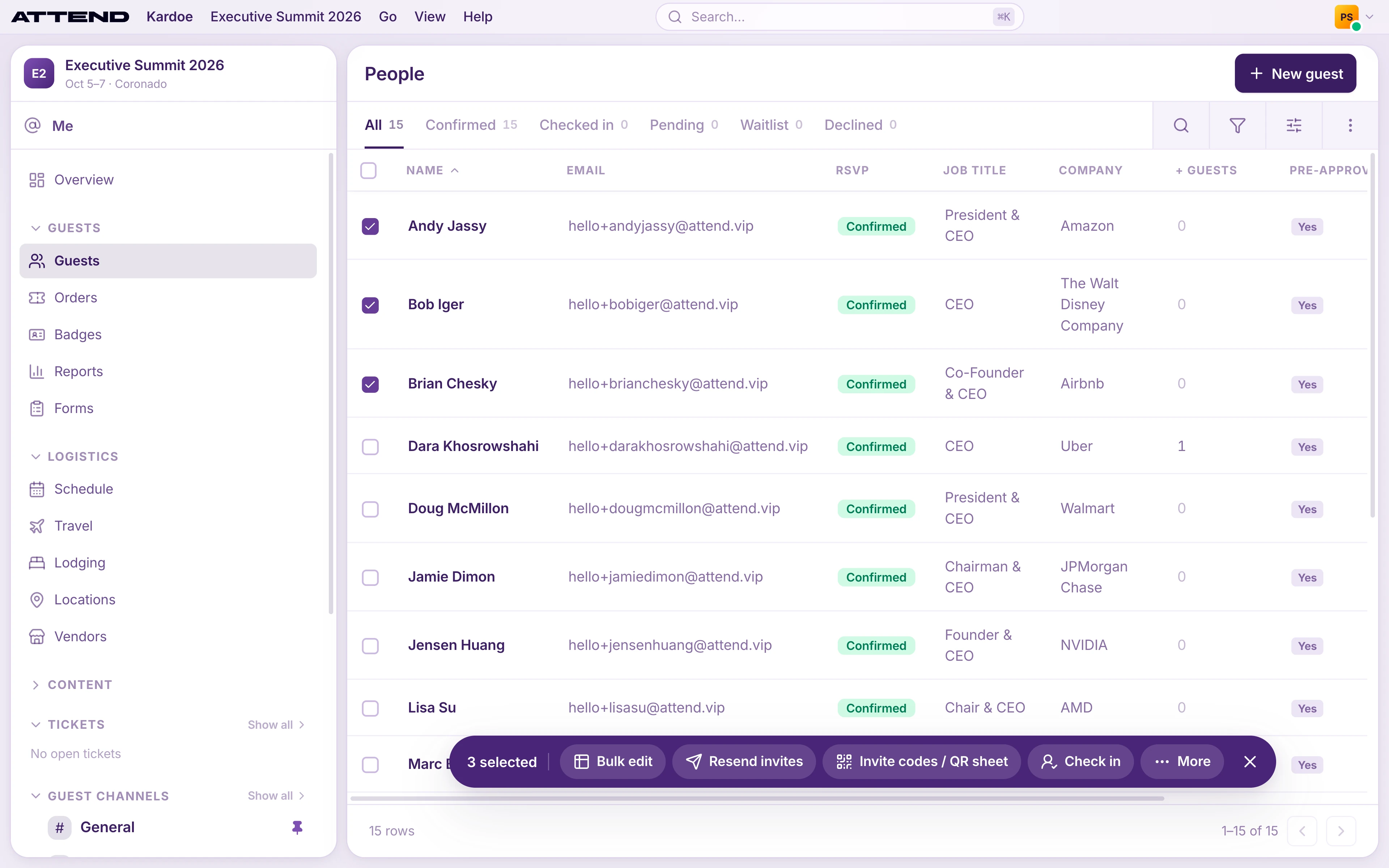
These guests have already been invited, so the bar shows Resend invites. New guests show Send invites.
Each guest gets their own email with a personal QR code and a 6-digit, single-use sign-in code. The code lasts about 2 hours; if it expires, resend the invite.
Guests who have already confirmed and opened the app get a “You’re going” version. Confirmed guests who haven’t opened the app yet are asked to finish joining in the app.
Resending sends a fresh code and doesn’t change whether the guest has confirmed. Use it when someone can’t find their email.
Hand out QR cards instead
For guests you’ll see in person, or to avoid email altogether, print invite cards.
- Tick the guests on People.
- Choose Invite codes / QR sheet. No email is sent.
- Select Print. Each card has the guest’s name, email, QR code and code, plus “Download Attend from the App Store or Google Play, then scan this code to join.”
For a single guest, open their record and choose Invite code / QR.
A QR card is a key. Anyone holding it can enter the event as that guest. Hand cards to the right person, and never put them on name badges or public screens. If a card is lost, open the guest, choose Invite code / QR and select New code. The old card stops working. Use Revoke to cancel a card without making a new one. Cards expire after 30 days.
Calendar invites
To put the event in guests’ calendars, select guests and choose Send calendar invite. They receive a calendar file with an all-day entry. If your dates change, send the calendar invite again.
Billing
A guest counts toward your bill the first time you invite or confirm them, or when they confirm themselves. Resends are free, and your plan’s included guests are free. If sending is blocked with a billing message, your event needs activating. Contact us.