
Choose what guests see
Turn on only the parts of the app your event uses. Some of these switches also change what your invite promises.
- Where
- Event → Settings → App features
- Do first
- Create your event
Every event starts with most of the app switched on. Turn off anything you won’t use, so guests never open an empty tab. The guest app follows all of these switches. The invite email adjusts what it promises based on Schedule, Travel and Concierge.
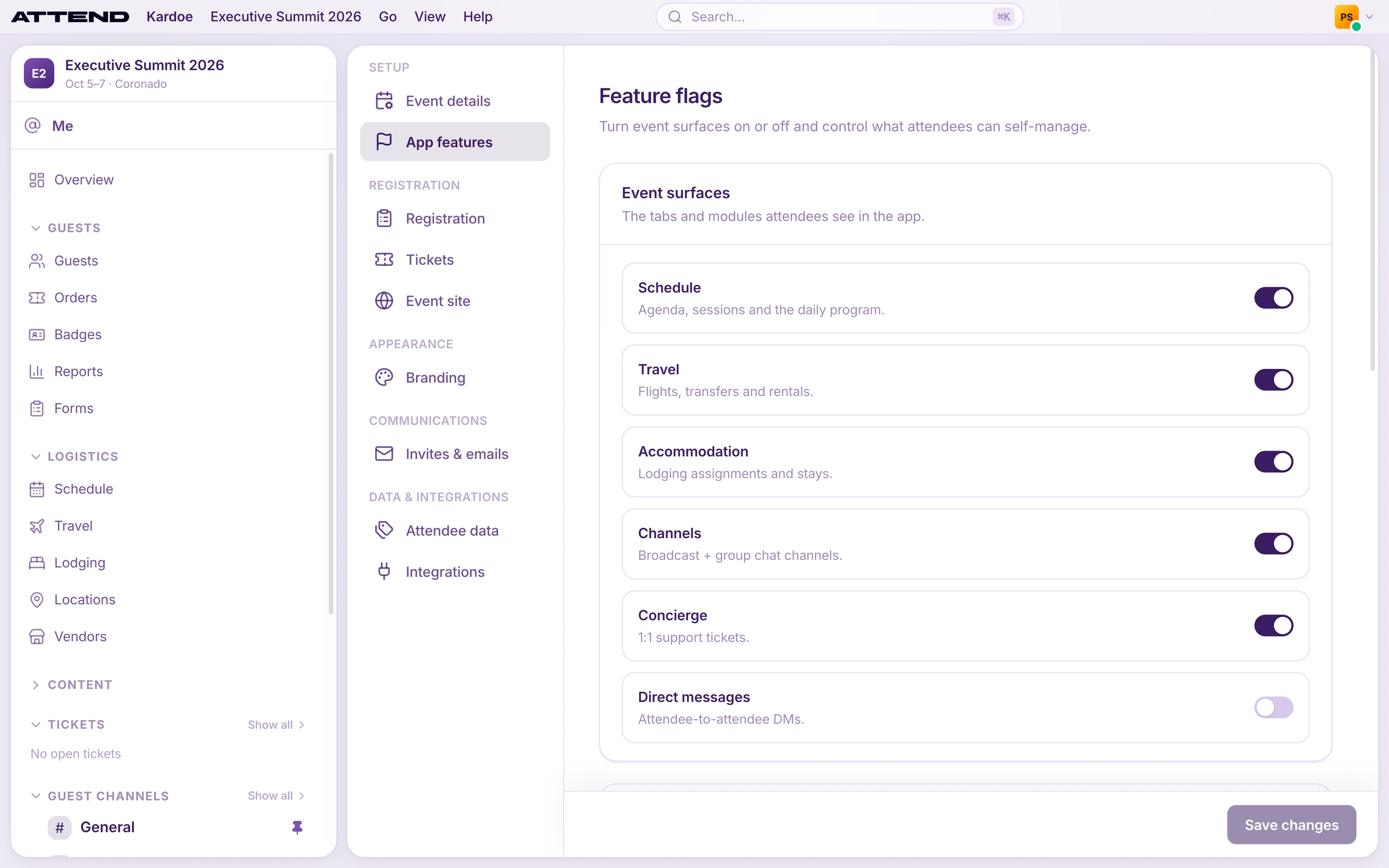
Event surfaces
| Switch | What guests get | Starts |
|---|---|---|
| Schedule | The agenda, sessions and activities they can sign up for | On |
| Travel | Their flights, transfers and rental cars | On |
| Accommodation | Where they’re staying | On |
| Channels | Group chats and announcement channels | On |
| Concierge | A private line to your team for questions and requests | On |
| Direct messages | Guests can message each other one-to-one | Off |
Rule of thumb: if you aren’t going to add anything for a feature before guests arrive, turn it off now. You can turn it on again later.
Channel defaults
- Default notifications: how noisy new channels are for their members. Mentions only is the default and suits most events. Members can change their own setting. It doesn’t change channels that already exist.
- Who can use @everyone: keep this as Event team only unless you want guests to be able to notify the whole channel.
Session rosters
Choose who can see who’s going to each session: Event team only (the default), Attendees going to the session, or All event attendees. Individual sessions can override this. Attendees only see guests who’ve chosen to appear in the attendee list.
Attendee travel self-service
For flights, lodging, ground transfers and rentals, choose whether guests Can add and Can edit their own bookings. All are on by default. Turn them off if your team books all travel and you don’t want guests changing it.
Select Save changes.