
Write your invite
Customise the invite email, reminder emails and the invite page guests land on — or keep the smart defaults.
- Where
- Event → Settings → Invites & emails
- Do first
- Choose what guests see, Brand your event
The invite is the first thing guests see, before they ever open the app. Attend writes a good one for you: every line has a default that adapts to the features you switched on, so it never promises a schedule or travel you aren’t providing. Edit only the lines you want to make your own.
Set up App features and Branding first. Your brand colour flows into the email automatically. The image at the top of the email is your email banner or, if you haven’t set one, the hero image from Settings → Event site.
How editing works
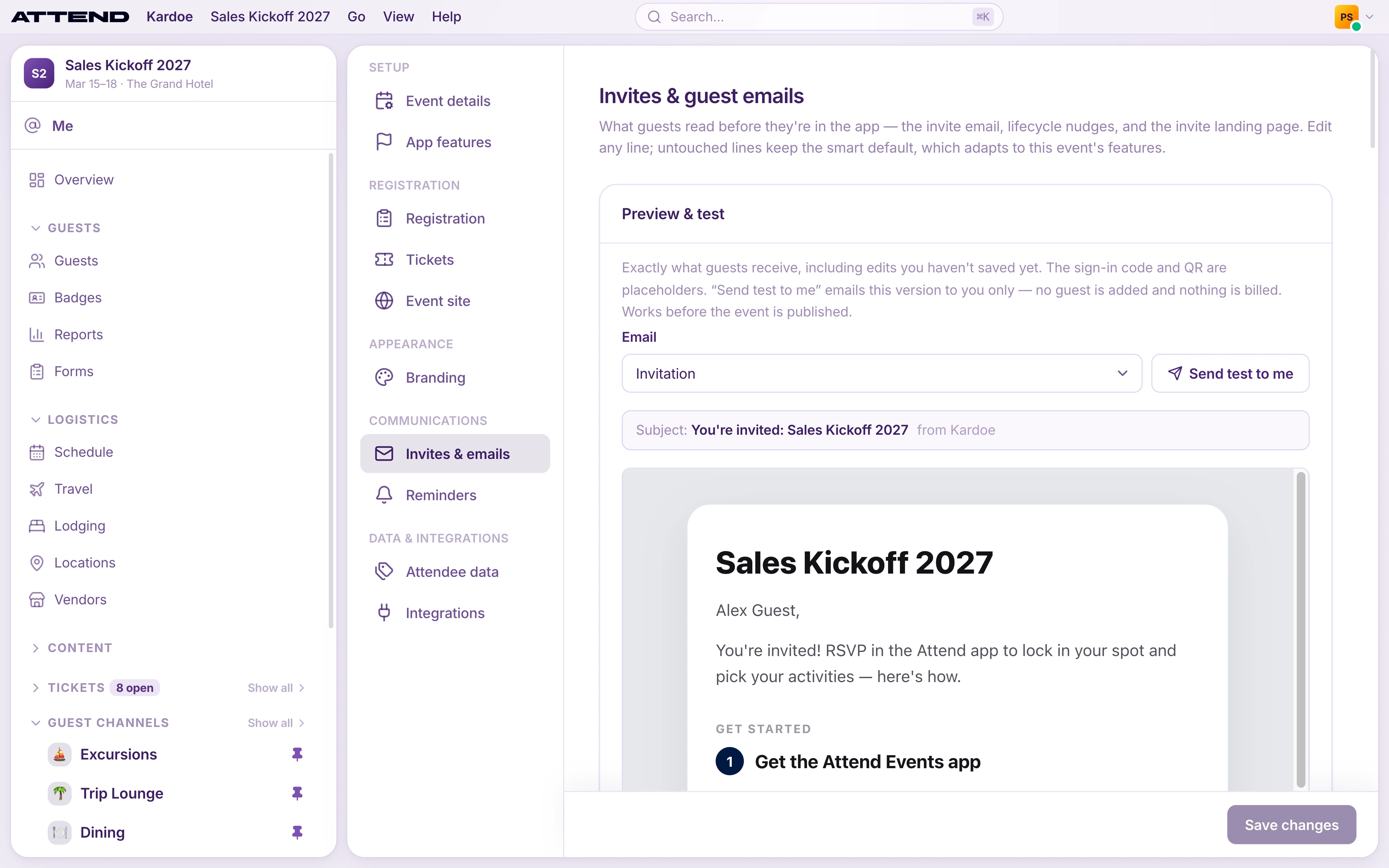
- Every field shows its current default. Change the text and it’s marked Customized.
- Select the reset icon on a field to go back to the default, or Reset all to defaults at the bottom of the page (the email banner isn’t reset).
- Single lines can be up to 300 characters. The longer messages can be up to 1,000.
- Select Save changes when you’re done.
Preview and send yourself a test
The Preview & test card at the top shows exactly what guests receive, including edits you haven’t saved yet.
- Choose an email under Email: the Invitation, the versions for guests who are going, waitlisted or need to confirm, a Plus-one invite, or the follow-up emails (Approved, Waitlist spot opened, Confirm-spot reminder and more).
- The preview and its Subject update as you edit.
- Select Send test to me to get that email in your own inbox. It’s marked as a test, the sign-in code and QR code are placeholders, no guest is added and nothing is billed. It works before the event is published.
What’s in the invite email
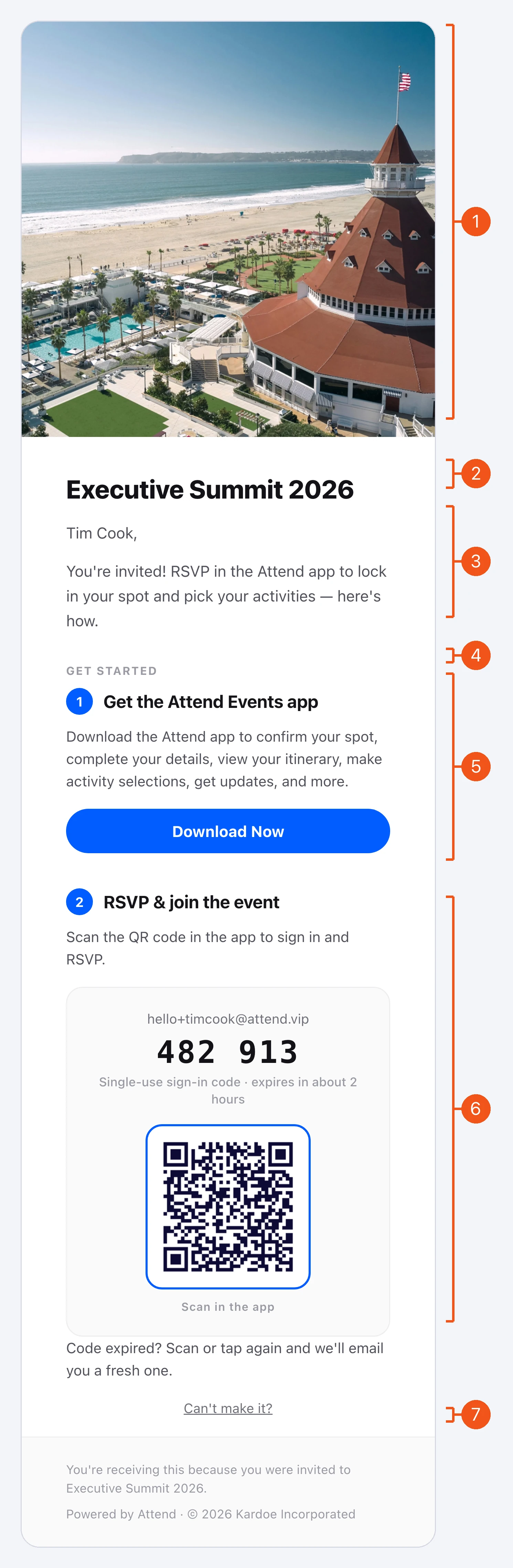
The Executive Summit demo invite, with a Coronado photo as the email banner.
| # | Field | Default |
|---|---|---|
| 1 | Email banner | None. The event site’s hero image (Settings → Event site) is shown instead, cropped square. With no hero image, no image appears |
| 2 | Headline | Changes with the guest’s status (see below) |
| 3 | Invitation message | Adapts to your features (see below) |
| 4 | Section eyebrow | “Get started” |
| 5 | Step 1 header, App blurb, Download button | “Get the Attend Events app”, a sentence about the app, “Download Now” |
| 6 | Step 2 header, Step 2 instruction | “RSVP & join the event”, how to scan the QR code |
| 7 | Decline link | “Can’t make it?” |
Invitation message
The Invitation message is the opening line of the invite, just under the guest’s name. Every guest gets the same message: there’s no per-guest note. The default is:
You’re invited! RSVP in the Attend app to lock in your spot and pick your activities — here’s how.
(Without a schedule it leaves out “and pick your activities”.)
Keep it short. Its job is to get guests to the steps below it. Replace it if you want the invite to sound like your event, for example:
We’d love you to join us in Lisbon for three days of strategy and time with the leadership team. Confirm your spot in the Attend app — here’s how.
- One or two sentences. The steps, code and QR follow straight after.
- Don’t start with “Hi {name}”. The email already greets each guest by name.
- Line breaks are kept, up to 1,000 characters.
- It only changes a fresh invite. Confirm, going, waitlist and plus-one emails keep their own opening line.
Subject lines
Every guest email’s subject is editable under Email subject lines, each with its own default. Use {event} for the event name, and {inviter} in the plus-one subject for the name of the guest who invited them.
Headlines for each guest’s situation
The same email adapts to where each guest is. You can reword each headline:
- Headline — confirm your spot: they’ve registered but still need to confirm in the app.
- Headline — going: they’ve already confirmed.
- Headline — waitlist: the event was full when they said yes.
- Headline — plus-one invite: another guest invited them. Use
{inviter}for that guest’s name.
Email banner
A banner is a wide image shown in your invite, reminder and confirmation emails, above or below the headline. It’s built into the email, so it shows even when the guest’s mail app blocks images.
- PNG, JPG or GIF, 1 MB maximum. About 1000 pixels wide works well, e.g. 1000 × 350.
- Choose Above the headline or Below the headline.
Reminder and confirmation emails
These go out automatically: reminders to confirm, waitlist spots opening up, and approvals.
- App benefits: up to 6 lines, one per line, listing what guests get in the app. The defaults follow your app features.
- Button label: the main button. Default “Confirm your spot in the app”.
- Team label: the footer line “Event team: {host}” on these emails.
Invite landing page
When a guest taps the invite link on a phone without the app, they land on a short page that sends them to the App Store or Google Play.
- Welcome line: default “Hi {first name} — you’re invited”.
{first name}fills in with each guest’s first name and{event}with the event name. If a guest’s name isn’t known, the greeting drops it, so “Hi {first name} — you’re invited” reads “You’re invited”. - Step 3 label: the last step shown, after “Get the Attend app”.
Good to know
- The email is sent from
invite@attend.vipunder the name in Branding → Organization eyebrow (or “Attend” if that’s blank). Replies go to the host email chosen when the event was created. If there’s none, replies go toinvite@attend.vip. - There’s no personal note per guest. The invitation message is the same for everyone.