
Set up reminders
Nudge guests to confirm, remind them before a to-do is due, and chase anyone still missing a flight or hotel, automatically.
- Where
- Event → Settings → Reminders
- Do first
- Fill in event details
Reminders send themselves at a time you choose, measured from the guest’s invite, the event start, a session, or a to-do’s due date. Each one works out who to send to at the moment it sends, so guests who have already acted are left out.
Reminders timed from the event start need the event’s Timezone set in event details. Times are shown in the event’s time zone.
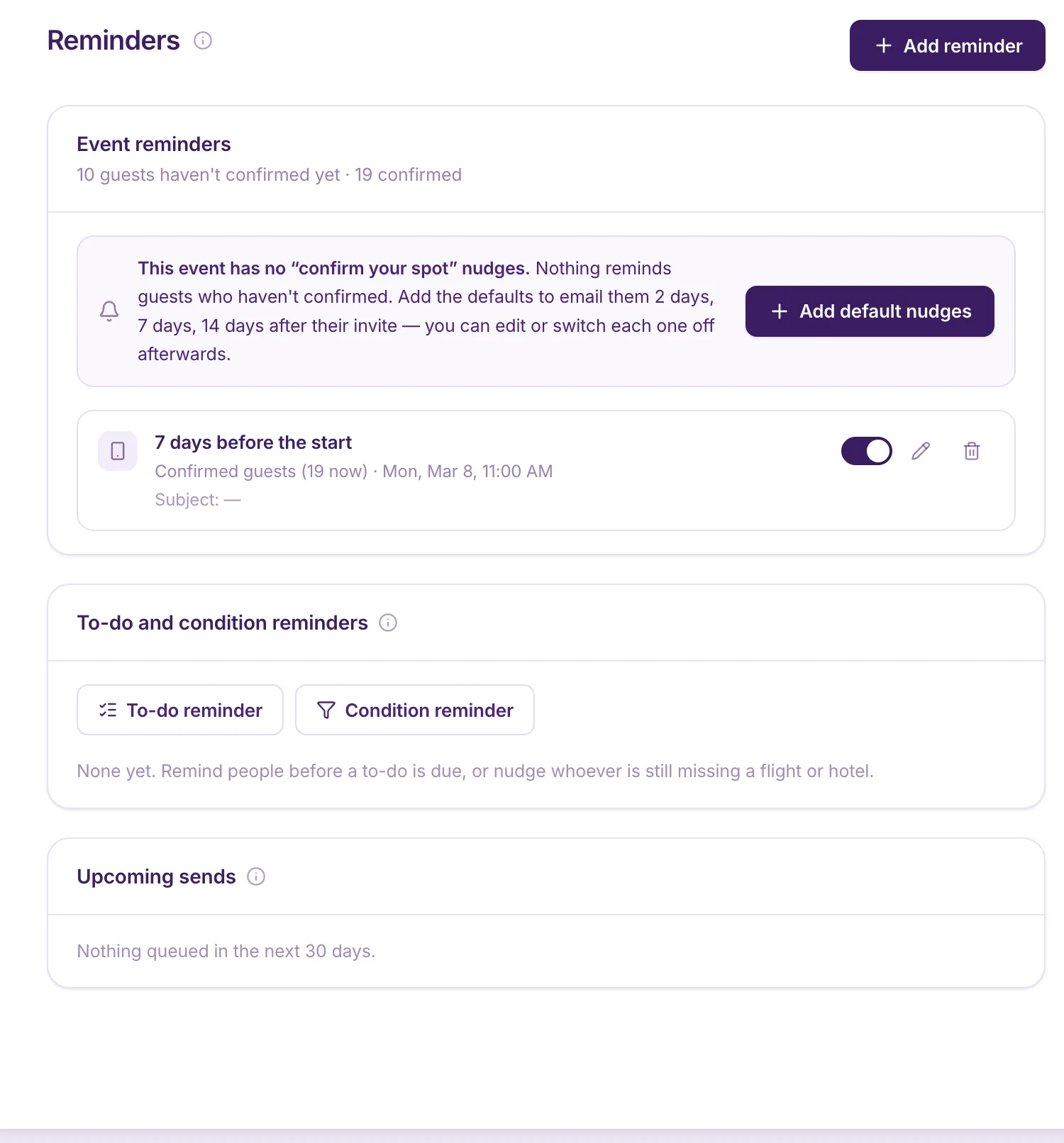
Confirm-your-spot nudges
The default nudges email invited guests who haven’t confirmed, 2, 7 and 14 days after their invite. Each guest’s nudges count from their own invite, and anyone who confirms or declines stops getting them.
- If an event doesn’t have them yet, select Add default nudges. It only adds the ones that are missing.
- Default nudges are marked Default. Edit their wording, switch one off, or use Reset to default wording to undo your changes.
- The email’s headline and message are edited in Guest emails under Confirm-spot reminder.
Your own event reminders
Select Add reminder. Choose When (After the invite is sent or Before the event starts) with the days and Plus hours, who to Send to, the Channel (Email or Push notification) and the Message. Emails you write here use the messages and reminders email and its banner.
To-do reminders
Remind people who haven’t finished a to-do before it’s due.
- Give the to-do a due date in To-dos.
- Under To-do and condition reminders, select To-do reminder.
- Choose the To-do, then When: how long before (or after) it’s due.
- Write the Email subject, an optional Push title, and the Message. Use Due date and To-do title to fill those in.
Condition reminders
Chase anyone who still matches a condition, on a schedule.
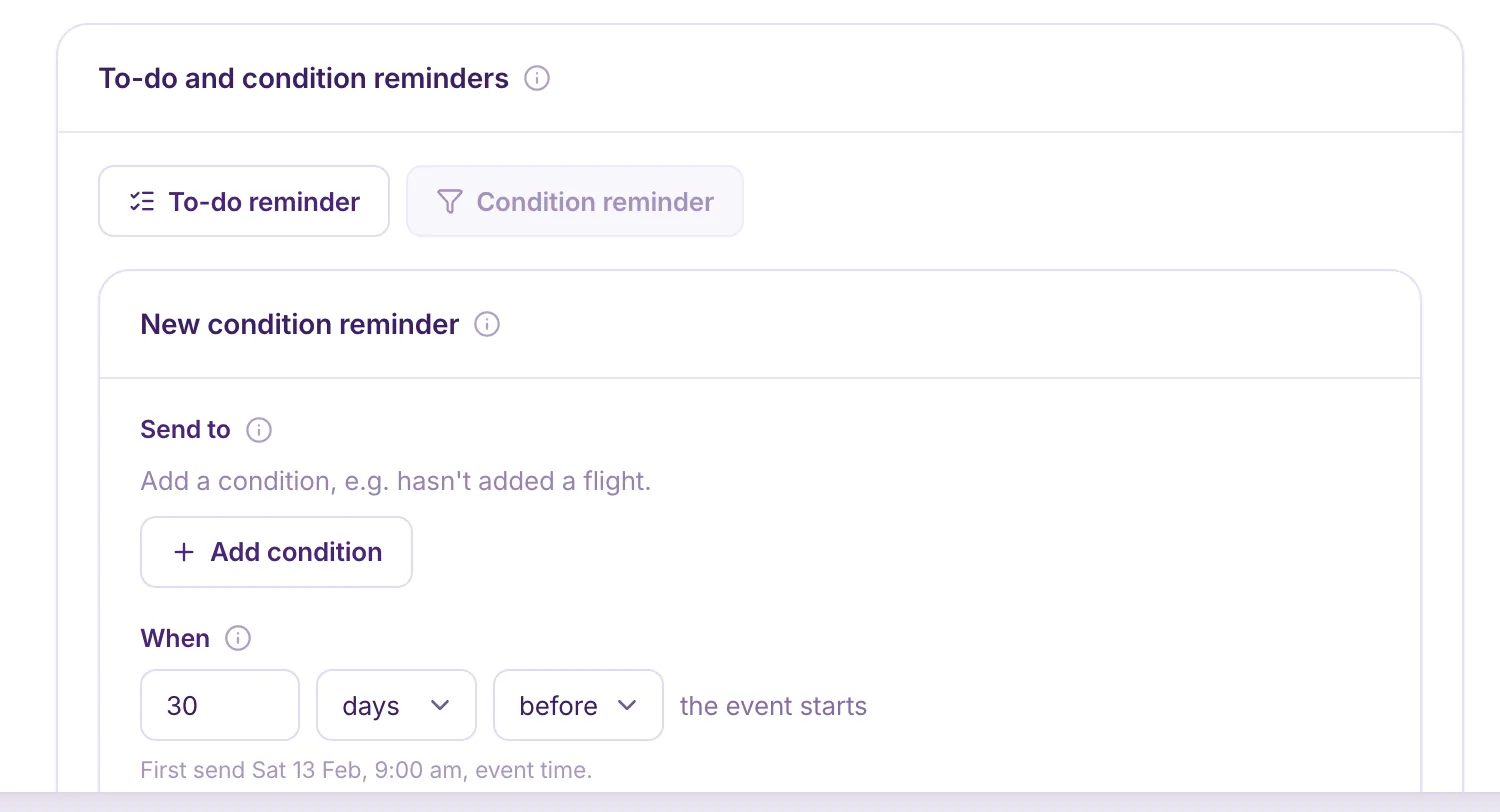
- Under To-do and condition reminders, select Condition reminder.
- Under Send to, select Add condition, for example hasn’t added a hotel. It goes to confirmed guests who match every condition when it sends. The conditions are the same as in Messages.
- Set When, for example 30 days before the event starts. The first send date is shown underneath.
- To send it again, turn on Repeat and choose how often. Each send checks again who still matches, up to 10 sends in all.
- Write the message. Emails keep their formatting, and push notifications get the same words as plain text.
Upcoming sends
Upcoming sends lists everything queued in the next 30 days, so you can check before anything goes out.