
Ask guests to do things with to-dos
Collect answers, travel and session choices in one checklist per guest, with due dates and a live count of who has finished.
- Where
- Event → To-dos
- Do first
- Add what guests will arrive to
A to-do is something you need each guest to do before the event: answer some questions, add their flight, book a hotel, choose sessions, sign a waiver. Guests see their to-dos on Home and on the schedule, and each one ticks off when it’s done.
A to-do can have up to 10 steps, so one to-do can cover everything for a trip (“Get ready for Lisbon”) instead of five separate ones. Flight, hotel and session steps check the guest’s real bookings, so they tick themselves off as soon as the guest adds a flight or picks a session.
Guests see multi-step to-dos, progress and due dates from version 1.6 of the Attend app. Until your guests have it, keep to-dos on live events to a single step.
See what’s outstanding
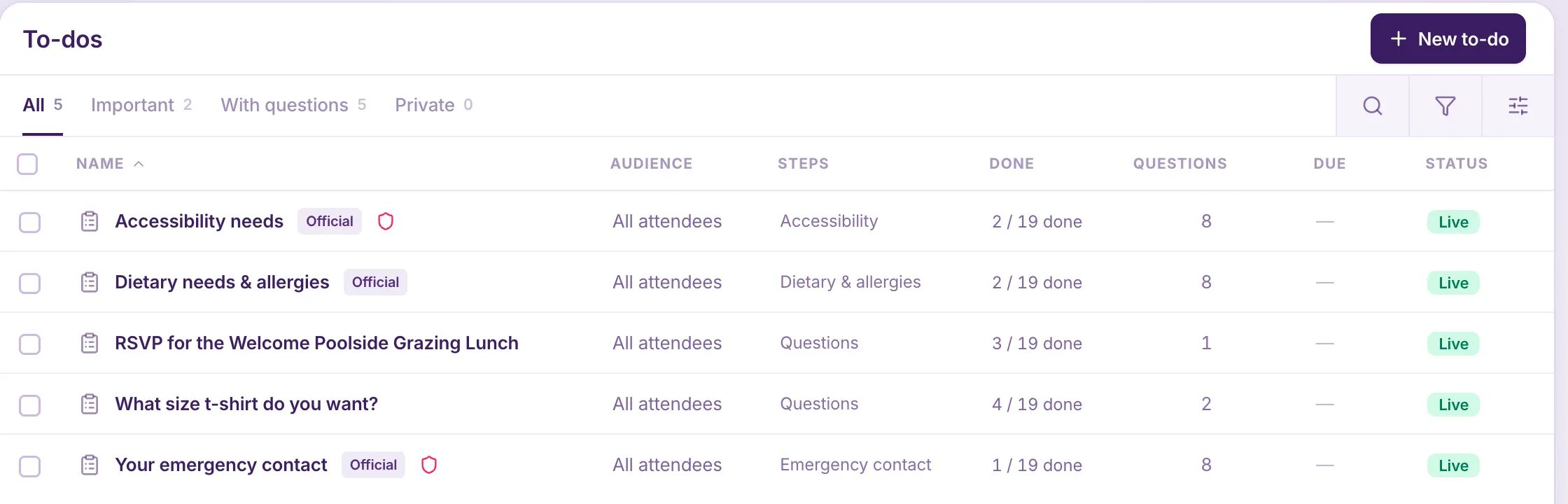
To-dos lists every to-do with its audience, steps, how many guests have finished it (for example 3 / 19 done), its due date and whether it’s live. The tabs above the list filter it, for example to Important to-dos only.
Create a to-do
- On To-dos, select New to-do.
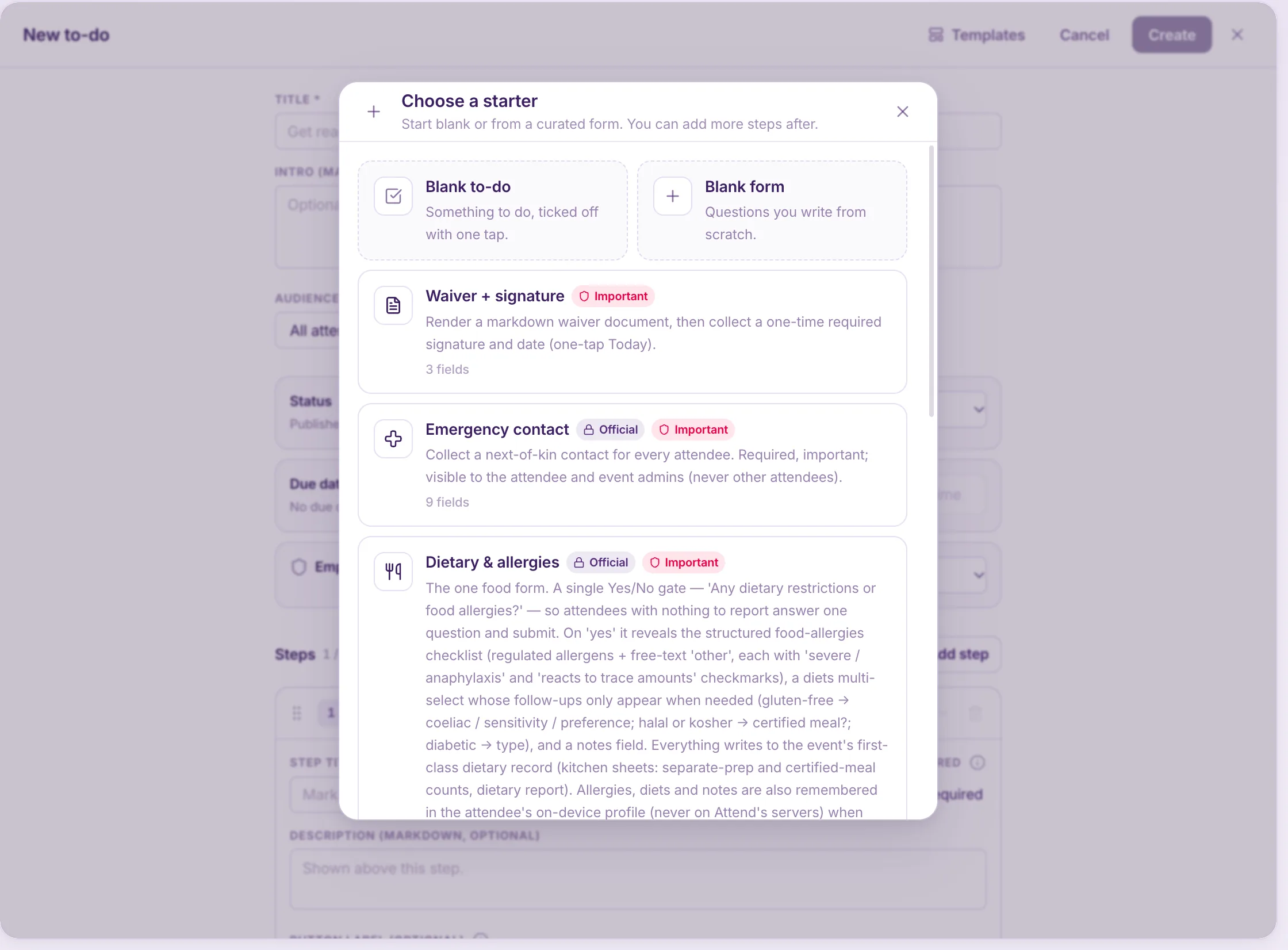
- Choose a starter, or Blank to-do or Blank form. Starters include the official Emergency contact, Dietary & allergies and Accessibility & accommodations forms, plus Waiver + signature, Apparel size, Photo & media consent, Dress code acknowledged, Roommate preference and Arrival confirmation.
- Enter a Title and, if you like, an Intro shown above the steps.
- Choose the Audience: All attendees, By agenda group, By agenda item, Membership group, Ticket type or Specific guests. The audience can’t be changed after the to-do is created.
- Set the Status. Published shows it to its audience straight away. Draft keeps it hidden.
- Optionally set a Due date (and a time), and set Emphasis to Important to make it stand out.
- Add and arrange the steps (below), then select Create.
Add steps
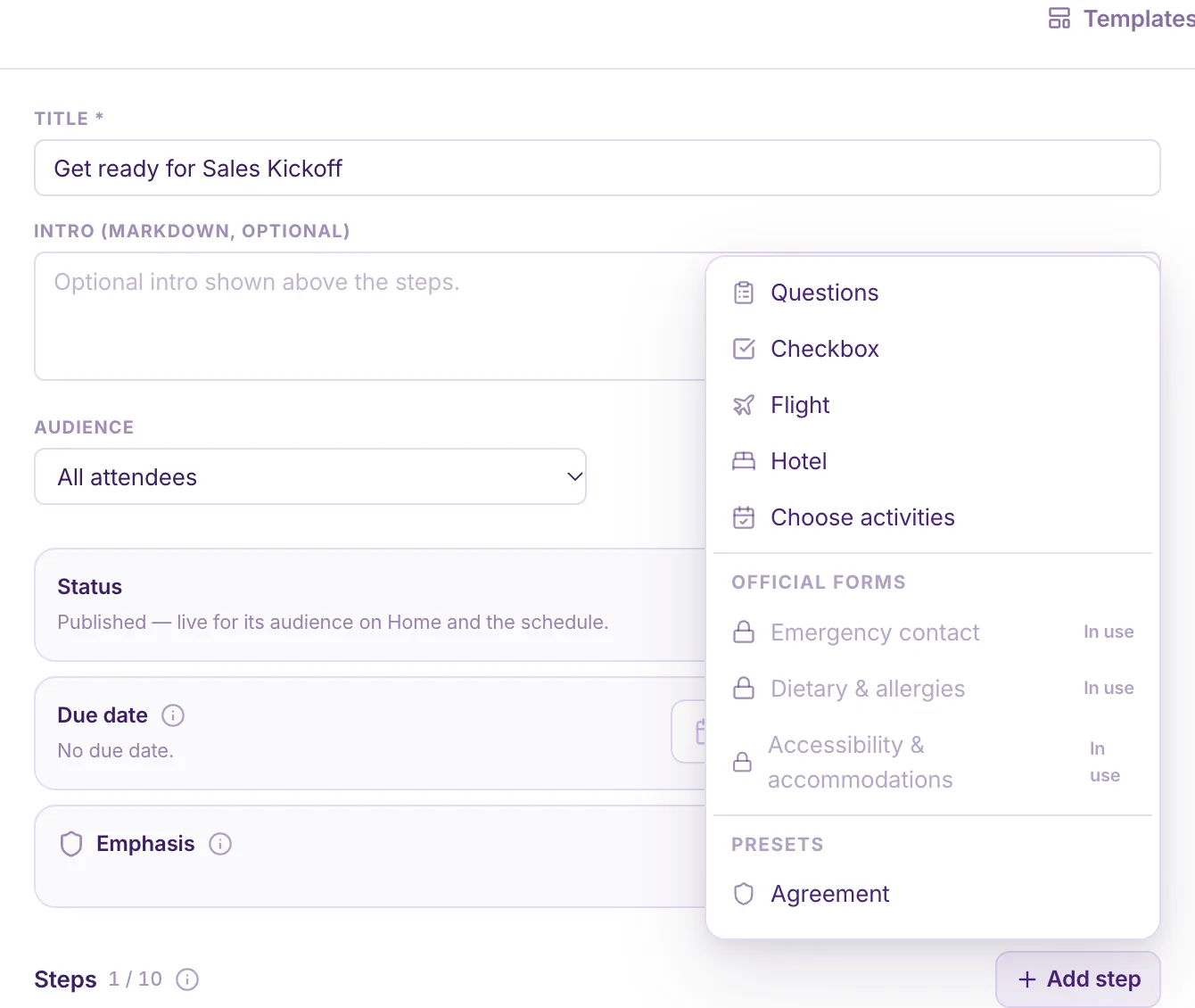
Select Add step and choose a kind:
| Step | What the guest does | Done when |
|---|---|---|
| Questions | Answers the questions you write | They submit |
| Checkbox | Taps a button, “Mark as done” unless you change it | They tap it |
| Flight | Adds their flight | A flight is on their travel, or they choose Not flying |
| Hotel | Adds their hotel | A stay is on their travel, or they choose No hotel needed |
| Choose activities | Picks sessions in a choice group | They’ve made their choices |
| Official forms and presets | Emergency contact, dietary, accessibility, Agreement, Upload a document, waiver and the other starters | They submit |
An official form can only be used once per event. If it’s already in another to-do, it shows In use.
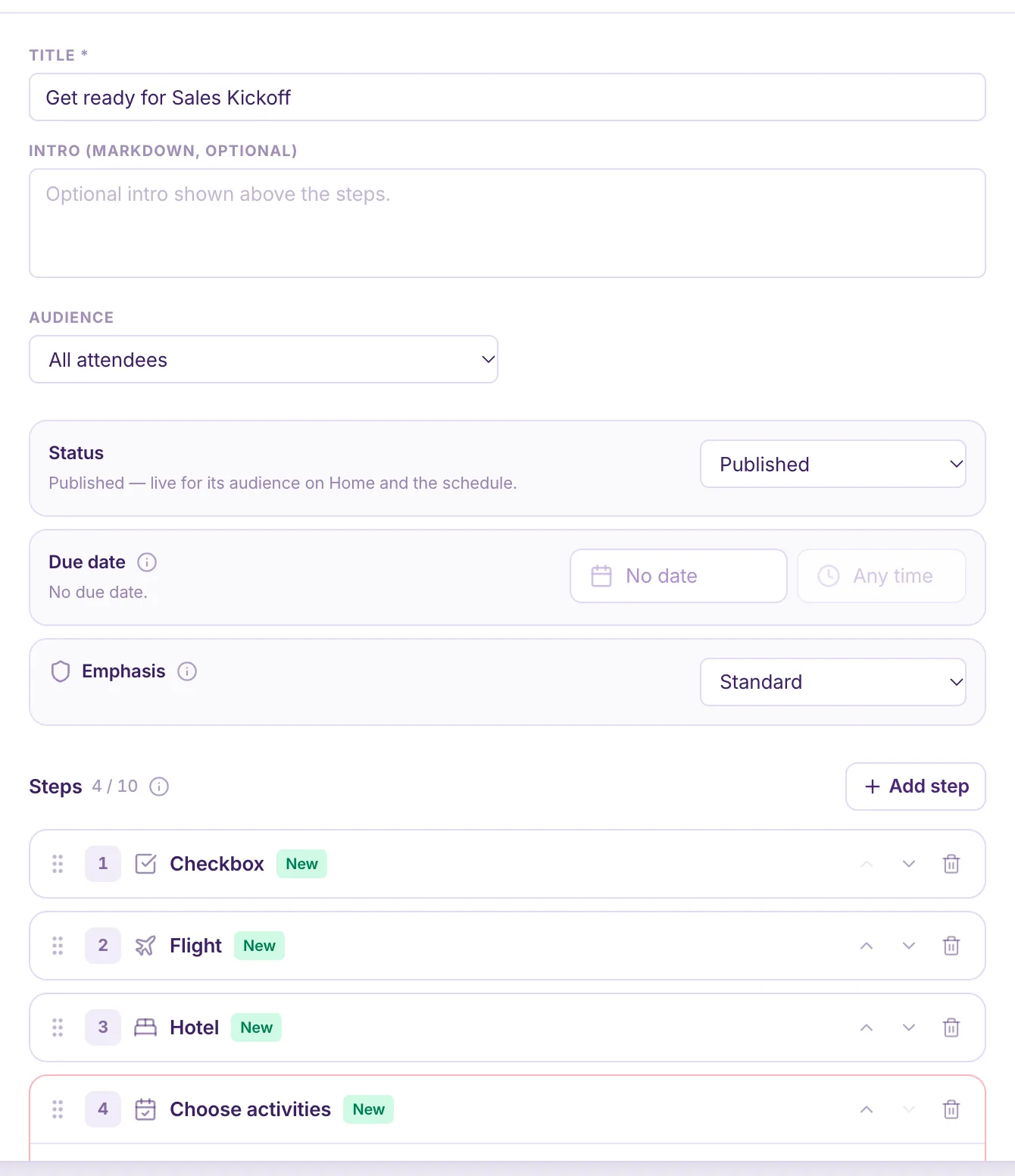
For each step, set a Step title, choose whether it’s Required, and add an optional description or button label. Drag a step by its handle, or use the arrows, to reorder it. You can have 1 to 10 steps.
Flight, hotel and session steps follow your schedule’s rules for capacity, waitlists and approval, exactly as if the guest had done it from the schedule or Travel.
Check on one guest
Open a guest from Guests to see each of their to-dos, step by step: Done, Not flying, No hotel needed or Open, with their answers. Your team can Mark done, Reopen or Mark not needed for that guest, for example when they sent the answer by email.
Chase the guests who haven’t finished
- Send a one-off message to everyone who hasn’t finished a to-do: see Message guests who still need to act.
- Remind them automatically before the due date: see Set up reminders.
- Share the to-do in a chat channel as a card guests can open.